Global Tech Summit
    • AWAN Labs

      • Device Life cycle management Lab
        • Overview
        • Starting Lab
          • Lab Blueprint Topology
        • Device Lifecycle Management
          • Login to Routing Director via Jumpbox
          • Network Planning
        • Managing Configuration in the Network Device
        • Deploy A Custom Configuration Template and Track configuration changes
        • Review Audit Logs
        • Tracking Trust score of devices
        • Track Interfaces Health, check for Flaps and stats
        • Review Alarms, Alerts, and Syslogs
        • Lab Survey
      • Service Provisioning Lab
        • Overview
        • Starting Lab
          • Lab Blueprint Topology
        • Provision a L3VPN Service using a pre canned JSON
          • Login to Routing Director via Jumpbox
          • Provsion Service
        • Observability and Assurance of your Service Instance
        • De-Provision of L3VPN Service Instance
        • Lab Survey
      • Enterprise Routing Active Testing and Routing Director 2.4.0 API Lab
        • Overview
        • Starting Lab
          • Lab Topology
        • Enterprise Routing Active Testing
          • Login to Routing Director via Jumpbox
          • Test1 – Enterprise Service Activation / Reachability – Test DNS, Ping
          • Test2 - Cloud Apps Reachability
          • Test 3 - Performance Monitoring TWAMP
          • Test 4 - Y1731 Monitor
        • Routing Director 2.4.0 API Lab
        • Lab Survey
      • Designing and Optimizing MPLS Tunnels with Paragon Routing Director
        • Overview
          • Time
        • Starting Lab
          • Topology
          • Devices
          • Dynamic topology
          • Connect to Routing Director
          • Network Optimization
            • Tunnel Profile
            • Optimization Profiles
            • Endpoint Profiles
            • Path intents
        • Lab Survey
      • Routing Analytics
        • Overview
        • Starting Lab
          • Lab Blueprint Topology
        • Routing Analytics
          • Login to Routing Director via Jumpbox
          • Track BGP adjacencies in the network, BGP Flaps, Autonomous system, RIB changes
          • Track and Visualize Network Wide Routing Updates
          • Track Routing Updates for a specific device
          • Prefix of Interest Tracking
        • Lab Survey
      • Leveraging AI-Driven Observability for Enhanced Optical Network Assurance in DCI and WAN Links
        • Overview
        • Starting Lab
          • Unamplified 400G ZR+ HP Lab Topology
          • Connect to Routing Director
          • Configuration template
          • Verification via SSH/CLI (Optional)
          • Ask Paragon
        • Lab Survey
      • Juniper Routing Assurance
        • Overview
          • Lab Objectives:
        • Starting Lab
          • Lab Blueprint Topology
        • Routing Assurance Login
          • UI Navigation
        • Router Onboarding and Built-In Tools
          • Router Onboarding
          • Router Configuration
          • Verification
          • Configure Alerts
          • Router Insights & Events
          • Service Level Expectations
        • Network Failure Root Cause Analysis
          • Disable (Shutdown) Core router interface
          • Check Alerts
        • Compliance Assessment and Audit Readiness
        • Lab Survey
      • SRv6 Core and Edge Basics
        • Overview
          • Lab Blueprint Topology
          • Access details for User:
          • Architecture Introduction
          • SRv6 uSID Introduction
          • Starting Lab
          • STEP-1 (PE11/PE12/P1 Router)
          • STEP-2 (PE11/PE12/P1 Router)
          • STEP-3 (PE11/PE12/P1 Router)
          • STEP-4 (PE11/PE12/P1 Router)
        • L3VPN over SRv6 uSID
          • STEP-5 (PE11/PE12/P1)
          • STEP-6 (PE11/PE12)
          • STEP-7 (PE11/PE12/P1)
          • STEP-8 (PE11/PE12/P1)
          • STEP-9 (PE11/PE12)
          • STEP-10 (PE11/PE12/P1)
          • STEP-11 (PE11/PE12/P1)
        • Glossary
        • Lab Survey
      • SRv6 and MPLS Core and Edge Link Slicing
        • Overview
        • Lab Topology and Architecture
          • Lab Blueprint Topology
          • Access details
          • Architecture Introduction
          • Link Slicing Introduction
          • Link Slicing with slice-aware H-QoS
          • Slice-aware H-QoS Configuration
        • Starting the Lab
          • STEP-1 (P1/P2 Router)
          • STEP-2 (P1/P2 Router)
          • STEP-3 (P1/P2 Router)
          • STEP-4 (P1/P2 router - required on vMX)
          • STEP-5 (P1/P2 Router - required on vMX)
          • STEP-6 (P1/P2 Router)
        • Assigning traffic to slices – MPLS
          • STEP-7 (PE21/PE11 router)
          • STEP-8 (PE21/PE11 router)
          • STEP-9 (P1/P2 Router)
          • STEP-10 (P1/P2 Router)
          • STEP-11 (P1/P2 Router)
        • Assigning traffic to slices – SRv6
          • STEP-12 (PE21/PE11 Router)
          • STEP-13 (P1/P2 Router)
          • STEP-14 (P1/P2 Router)
          • STEP-15 (P1/P2 Router)
        • Appendix
        • Glossary
        • Lab Survey
      • Leveraging Juniper Networks Streaming Telemetry - OpenJTS Start UP Hands-on lab
        • Overview
        • Starting Lab
          • Step 1: Login to OpenJTS VM
          • Step 2: Download and install OpenJTS stack
          • Step 3: Build OpenJTS and start the stack
          • Step 4: Initial MX configuration
          • Step 5: Initial OpenJTS configuration
            • Add your MX router in your inventory
            • Test gNMI connectivity
            • Profile(s) assignement
            • Profile(s) Documentation
            • Visualize data
          • Step 6: Stop OpenJTS and clean your VM
      • Next Generation BNG CUPS Solution with ACX and MX Routers
        • Overview
        • Starting Lab
          • Lab Blueprint Topology
          • Access Details
          • Architecture Introduction
          • STEP-1: Configure BNG CUPS Controller (CP – Control Plane)
          • STEP-2: bbe-common-0 Group on CP (Control Plane)
          • STEP-3: DHCP dynamic-profile configuration on CP (Control Plane)
          • STEP-4: PPPoE dynamic-profile configuration on CP (control plane)
          • STEP-5: dhcp-local-server configuration on Control Plane (CP)
          • STEP-5: Access-Profile(Radius) configuration on CP
          • STEP-6: Access and Uplink interface configuration on UP1 (User Plane 1)
          • STEP-7 : Access and Uplink interface configuration on UP2 (User Plane 2)
          • STEP-8 : Subscribers validation on Control Plane (CP), UP1 and UP2
        • Glossary
        • Lab Survey

      Campus & Branch Labs

      • Mist Multihoming Fabric Lab
        • Overview
          • Topology
          • Known Limitations of Demos of this physical Sandbox Lab
        • Starting Lab
          • Access to Lab
          • Access Devices
          • Mist Org Access
        • Adding Switches to a Site
        • Create a Switch-Template
          • Import Switch Template
          • Manual Switch Configuration
          • Assign switch_template to site
        • Manage the device via MIST
        • MULTIHOMING FABRIC with L2 Exit
          • Configure the fabric.
          • WAN-Router (MX) Layer2 VLAN attached to Core
          • Verification
        • EVPN Insights
        • Usecase: MIST NAC
        • Lab Survey

      Data Center Labs

      • Apstra 6.0 Lab
        • Overview
        • Starting Lab
          • Topology
          • Access Details
        • Reviewing DC Configuration (Pre-Configured)
          • Review Resources
          • Review Rack Types
          • Review Templates
        • Deploying Blueprint
          • Assign System IDs to Fabric Nodes
          • Commit and Deploy the Blueprint
        • Reviewing Blueprint parameters (Pre-configured)
          • Review Nodes and Links
          • Review Blueprint Properties
          • Review Routing Zones
          • Review Virtual Networks
          • Review Virtual Network and Routing Zone parameters
          • Review Connectivity Templates
        • Usecases
          • Usecase 1: Verify Connectivity
            • Usecase 1a: Ping from Host1 to Host2
            • Usecase 1b: Ping from Host2 to Host3
            • Usecase 1c: Ping from Host3 to Host4
          • Usecase 2: Configure via Configlet
          • Usecase 3: Instantiate Pre-Defined IBA Probe
          • Usecase 4: Starting and Stopping Probes
          • Usecase 5: Root Cause Analysis
          • Usecase 6: Time Voyager
          • Usecase 7: Config Deviation
        • Try it later ?
        • Lab Survey
      • Apstra Demonstration Lab
        • About This Guide
          • Introduction
          • Purpose and Scope
          • How to Use This Guide
          • Access Details
          • Creating Effective Customer Demonstrations
          • The Network Operations Lifecycle: Understanding the Operations Donut
            • A Critical Perspective: The Reality of Network Operations
            • Traditional Day 0/1/2 Approach vs. Apstra’s Unified Lifecycle
          • Lab Environment Overview
          • Guide Structure
          • Navigating the Lab Demonstrations
        • Understanding Apstra Architecture & Intent-Based Networking
          • Business Context
          • Objectives
          • Overview
          • Architectural Foundations
            • 1. The Apstra Architectural Advantage
            • 2. Intent-Based Networking Principles
            • 3. Reference Design Methodology
            • 4. The Contextual Data Model
        • Demo Starting Point
          • Pre-Built Fabric Exploration
            • 1. Accessing the Pre-Built Data Centre Fabric
            • 2. Interface Overview & Orientation
            • 3. Examining the Fabric Blueprint
            • 4. Understanding the Topology Visualization
          • Key Takeaways
          • Next Steps
        • Design Fundamentals
          • Objectives
          • Understanding the Topology Structure
            • 1. The Three-Stage Clos Architecture
            • 2. Managed vs. Unmanaged Elements
            • 3. Rack-Based Design Philosophy
          • Design Methodology Overview
            • 1. The Design Tab Interface
            • 2. Rack Design Components
            • 3. Template-Based Fabric Creation
          • Key Takeaways
        • Day 2 Operations: Data Centre Expansion and Virtual Network Creation
          • Section 1: Physical Expansion - Adding Data Centre Capacity
            • Business Context
            • Demonstration Objectives
            • Scenario: Adding Capacity for the Big Data Analytics Service
            • Task: Add a New Rack to Your Data Centre
              • Reflection Point: Traditional Approach Challenges
            • Step-by-Step Demonstration
              • Step 1: Navigate to the SE Demo Blueprint
              • Step 2: Add a New Rack to the Blueprint
              • Step 3: Let Apstra Handle Resource Allocation
              • Step 4: Assign Device Profiles
              • Step 5: Review and Commit Your Changes
              • Step 6: Understanding the Power of Pre-staging
              • Step 7: Examine the Prepared Configuration
            • What You’ve Accomplished
          • Section 2: Logical Expansion - Creating Virtual Networks
            • Business Context
            • Demonstration Objectives
            • Scenario: Building Network Tiers for the Big Data Analytics Service
            • Task: Create Virtual Networks for the Analytics Service
              • Reflection Point: Traditional Complexity
            • Step-by-Step Demonstration
              • Step 1: Create the Analytics Web Tier Network (Layer 2 Only)
              • Step 2: Create the Analytics Database Tier Network (Layer 3)
              • Step 3: Assign Resources to Virtual Networks
              • Step 4: Assign Resources to the Routing Zone
              • Step 5: Review and Commit Your Changes
            • What You’ve Accomplished
            • Competitive Positioning
          • Section 3: Architectural Changes - VRF Migration
            • Business Context
            • Demonstration Objectives
            • Scenario: Migrating Virtual Networks Between Routing Zones
            • Task: Migrate Virtual Networks Between VRFs
              • Reflection Point: Traditional Migration Complexity
            • Step-by-Step Demonstration
              • Step 1: Examine Current VRF Structure
              • Step 2: Select Virtual Networks for Migration
              • Step 3: Initiate the Migration
              • Step 4: Understand What’s Happening Behind the Scenes
              • Step 5: Verify the Migration
            • What You’ve Accomplished
            • Competitive Positioning
            • Business Value Summary
            • Next Steps
        • Day 2 Operations & Assurance
          • Overview
          • Objectives
          • Lab environment note
          • Context within the overall guide
          • Business context
          • Demonstration steps
            • Step 1: Access the live traffic environment
            • Step 2: Navigate to the main dashboard
            • Step 3: Examine fabric health indicators
            • Step 4: Explore Analytics
            • Step 5: Review fabric capacity indicators
          • Key benefits demonstrated
          • Advanced considerations
          • Conclusion and key takeaways
        • Lab conclusion
        • Lab Survey
      • Apstra Marvis Better together lab guide.
        • Overview
        • Starting Lab
          • Topology
          • Access Details
        • Reviewing DC Configuration (Pre-Configured)
          • Review Resources
          • Device Profiles (Pre-configured)
          • Logical Devices (Pre-configured)
          • Interface Maps (Pre-configured)
          • Review Rack Types
          • Review Templates
        • Deploying Blueprint
          • Onboard Devices
          • Assign System IDs to Fabric Nodes
          • Import the Junos OS Apstra Flow Configlet
            • Import the Configlet
            • Configure SNMP for Interface Name Enrichment
          • Commit and Deploy the Blueprint
        • Reviewing Blueprint (Pre-configured)
          • Routing Zones (Pre-configured)
          • Virtual Networks (Pre-configured)
          • Connectivity Templates (Pre-configured)
        • Simulate/Generate traffic in Fabric
        • Apstra Flow Configuration
          • Review Apstra Premium License
          • Flow VM configuration
          • Restart the Flow Services
        • Setting up and connecting Apstra Edge with Apstra Cloud Services
          • Creating Org and Adopting Edge on Jcloud (Juniper Apstra Cloud Services)
        • Usecases
          • Usecase 1: Incorrect Cabling
          • Usecase 2: Config Dev error
          • Usecase 3: Impact Analysis
          • Usecase 4: Service Aware
          • Remediate the anomalies
        • Try it later ?
        • Lab Survey

      Security Labs

      • Security Director Cloud Lab
        • Getting Started
          • Lab Objectives
          • Lab Registration
          • Connectivity
          • Topology
          • SRX Lab Configuration and Connectivity
        • Lab 0 – Onboarding and Preparations
          • SD Cloud Environment
            • What is SD Cloud?
            • Access your SD Cloud Demo Account
          • SRX Onboarding
            • Connect SRX to SD Cloud
            • Deploy SRX Policy
            • Enable SRX Logging
          • SRX Initial Configuration
            • Check the SRX Time
            • Configure SSL Forward-Proxy
            • FW logs and Dashboard
            • Update Application Identification Database
        • Lab 1 – Unified Security Policies
          • What are Unified Policies?
            • Redirect message
          • L7 Applications Rules
            • Choosing Application Signatures
            • Blocking Applications
            • Reordering L4/L7 Rules
            • Rule-Matching
          • Configure a URL Category with Unified Policies
            • Configure and Test Web-Filtering
            • URL Category Match Criteria
            • Test URL Match Criteria
          • Creating Reports
        • Lab 2 – User Identity
          • User Identity with Juniper Identity Management (JIMS)
            • Configure Active Directory in JIMS
            • Configure Event Log Source
            • Connect SRX to JIMS
            • Test User Identity
            • Identity-based FW Policy
        • Lab 3 – Site to Site VPN
          • IPsec Preparations
          • Create VPN Tunnel
          • Create VPN Polices
        • Lab Survey

AWAN Labs

  • Device Life cycle management Lab
  • Service Provisioning Lab
  • Enterprise Routing Active Testing and Routing Director 2.4.0 API Lab
  • Designing and Optimizing MPLS Tunnels with Paragon Routing Director
  • Routing Analytics
  • Leveraging AI-Driven Observability for Enhanced Optical Network Assurance in DCI and WAN Links
    • Overview
    • Starting Lab
      • Unamplified 400G ZR+ HP Lab Topology
      • Connect to Routing Director
      • Configuration template
      • Verification via SSH/CLI (Optional)
      • Ask Paragon
    • Lab Survey
  • Juniper Routing Assurance
  • SRv6 Core and Edge Basics
  • SRv6 and MPLS Core and Edge Link Slicing
  • Leveraging Juniper Networks Streaming Telemetry - OpenJTS Start UP Hands-on lab
  • Next Generation BNG CUPS Solution with ACX and MX Routers

Campus & Branch Labs

  • Mist Multihoming Fabric Lab

Data Center Labs

  • Apstra 6.0 Lab
  • Apstra Demonstration Lab
  • Apstra Marvis Better together lab guide.

Security Labs

  • Security Director Cloud Lab

Leveraging AI-Driven Observability for Enhanced Optical Network Assurance in DCI and WAN Links

Overview

As modern optical networks expand, precise real-time monitoring becomes essential to maintain signal integrity and service reliability across high-capacity links. This hands-on lab demonstrates Juniper’s Routing Director (formerly Paragon) integrated with an LLM-powered Ask Paragon interface, provides a smarter way to monitor and analyze custom optical KPIs specifically tailored for Enterprise Data Center Interconnect (DCI) over DWDM and transcontinental service providers’ WAN links.
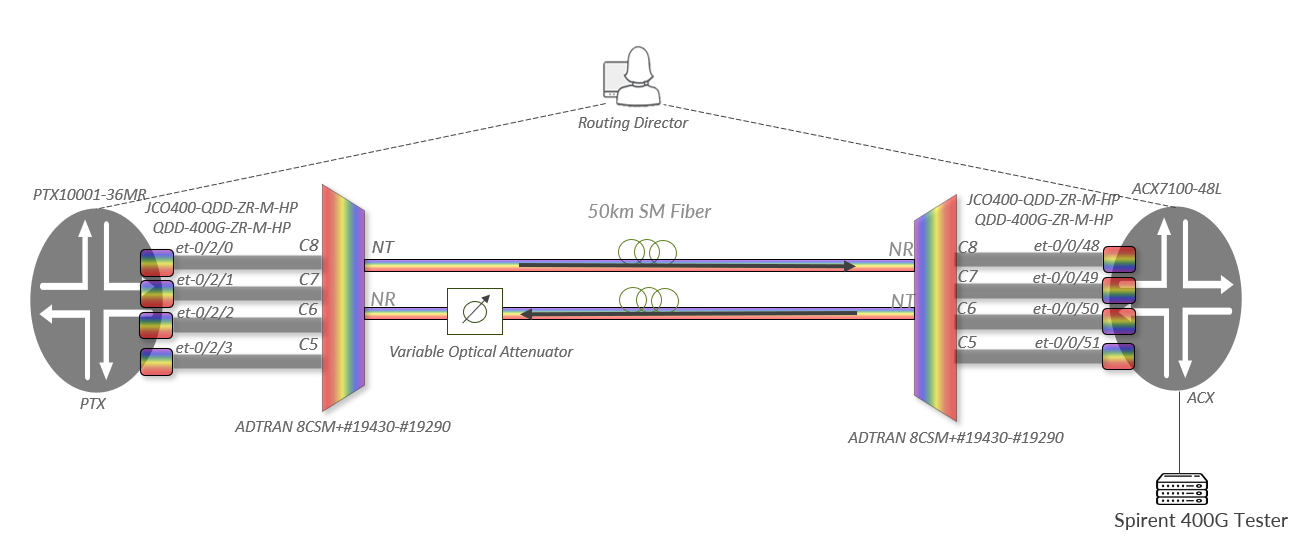
Topology

Objectives

  • Participants will learn how AI-assisted observability through the Routing Director can optimize monitoring strategies and improve decision-making processes for complex network environments, ensuring robust performance in DCI and expansive WAN scenarios.

Key Topics

  • Easily provision optics and configure their assigned wavelengths using Routing Director.

  • Real-time tracking of critical optical metrics such as OSNR, input/output power, pre-FEC BER, and transceiver health.

  • Utilizing natural language queries to obtain insights like “Which links have degrading Input Power trends?” or “Show me the pre-FEC BER spikes in the last 24 hours.”

  • Enhancing operational workflows with AI-driven trend visualization and alerts.

Skills and Tools

  • Prerequisites: Basic understanding of optical networking and DWDM.

  • Tools Used: Junos-based infrastructure, Routing Director, Ask Paragon interface.

  • Methodology Through guided exercises, participants will engage in real-time insights generation and trend analysis using a conversational AI interface. This lab is designed to simulate enterprise and WAN environments, focusing on the unique challenges these networks face.

  • Benefits Gain valuable skills in deploying AI-driven observability tools that enhance network assurance for DCI over DWDM and transcontinental WAN links. Participants will walk away with actionable strategies to optimize their monitoring practices, thereby improving service reliability and operational efficiency.

Starting Lab

This Lab covers basic optical use cases. It will cover basic configuration needed to bring up ZR/ZR+ Optics and monitoring. ​

  • Unamplified Links ​

    • Point-to-Point Links where there is no Amplifier required. ​

    • Optical Power Limited​

    • Router configuration only​

    • Multiple channels on a single duplex fiber is also possible.​

Unamplified 400G ZR+ HP Lab Topology

Topology

This topology has 2 Routers, PTX10001-36MR and ACX7100-48L with 400G-ZR+ HP modules. All 4 pairs of modules in this lab. An Adtran 8-channel passive filter is used to multiplex the optical signals then through 50km of fiber. Only 4 pairs of modules are used due to resource limitations. A Variable Optical Attenuator (VOA) will be used to degrade the line.

Users will configure all interfaces. The interfaces should be configured with the correct wavelength to ensure the signal can pass through the filter.

Connect to Routing Director

Make sure your Zscaler Private Connection is enabled.

Then go the Routing Director GUI URL provided via email. Click Advance and then Accept the Risk and Continue. If you using Chrome and cannot continue, click anywhere on the webpage and type thisisunsafe.

Use the same credentials provided via email.

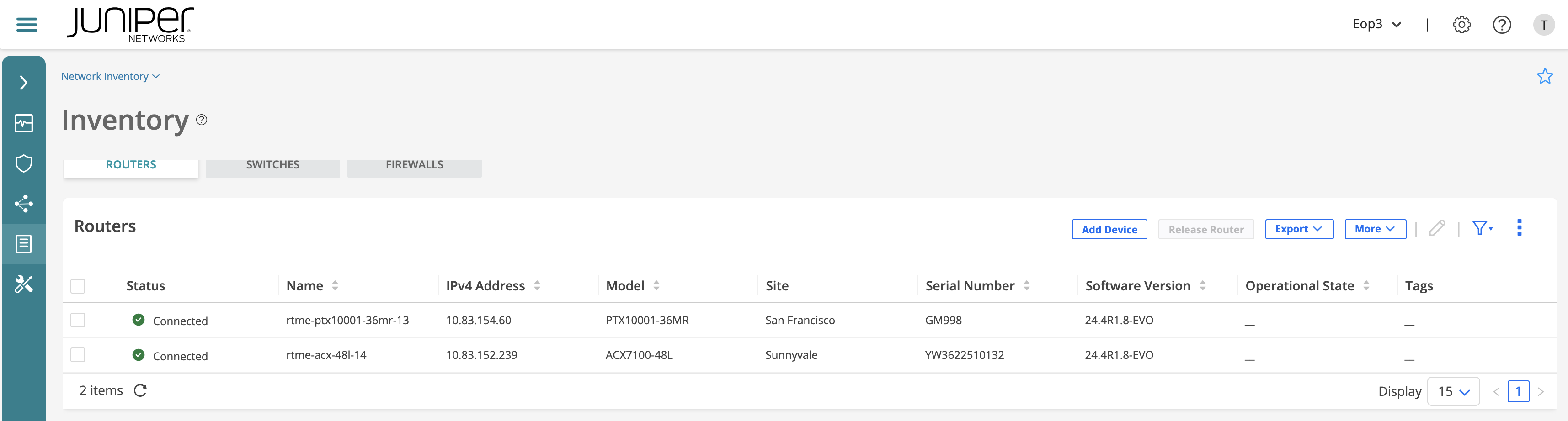
You should see the following at the Inventory > Network Inventory:
Inventory

Configuration template

Go to Inventory > Configuration Templates and you should see a configuration template (CT) with the following name:

  • TechSummitOpticsLab_PTX

  • TechSummitOpticsLab_ACX

Select it and then click in the pencil icon (i.e. edit). A Warning will show up. Click Yes. Click Next and examine it:

configure
set interfaces {{ interface1 }} optics-options wavelength {{ lambda1 }}
set interfaces {{ interface2 }} optics-options wavelength {{ lambda2 }}
set interfaces {{ interface3 }} optics-options wavelength {{ lambda3 }}
set interfaces {{ interface4 }} optics-options wavelength {{ lambda4 }}
commit

Check at the Parameters the different fields required to generate a piece of config from that template. Expand the Parameters. Click Cancel and exit without saving any changes.

Select the configuration template again (TechSummitOpticsLab_PTX) and now click Deploy to Devices. Select devices and click Deploy.

Select the configuration template again (TechSummitOpticsLab_ACX) and now click Deploy to Devices. Select devices and click Deploy.

Fill in for each device with below table each of its optics interfaces. Click the > symbol to collapse the form and then select the assigned Interface and Lambda from the appropriate drop-down boxes. The options have been limited to only one to prevent misconfiguring other users’ interfaces.

PTX Channel Plan

Device

Interface

Wavelength

Adtran Port

PTX

et-0/2/0

1554.13

C8

PTX

et-0/2/1

1552.52

C7

PTX

et-0/2/2

1550.92

C6

PTX

et-0/2/3

1549.32

C5

ACX Channel Plan

Device

Interface

Wavelength

Adtran Port

ACX

et-0/0/48

1554.13

C8

ACX

et-0/0/49

1552.52

C7

ACX

et-0/0/50

1550.92

C6

ACX

et-0/0/51

1549.32

C5

Click Preview Configuration so you should see something like this:

  • PTX

set interfaces et-0/2/0 optics-options wavelength 1554.13
set interfaces et-0/2/1 optics-options wavelength 1552.52
set interfaces et-0/2/2 optics-options wavelength 1550.92
set interfaces et-0/2/3 optics-options wavelength 1549.32
  • ACX

set interfaces et-0/0/48 optics-options wavelength 1554.13
set interfaces et-0/0/49 optics-options wavelength 1552.52
set interfaces et-0/0/50 optics-options wavelength 1550.92
set interfaces et-0/0/51 optics-options wavelength 1549.32

Then click Deploy and you should see a workflow being started (Configuration Template request correctly submitted). Once it has successfully finished, the configuration should have been pushed to the devices. Click on Job Details and you should see at the Audit Logs the job.

Verification via SSH/CLI (Optional)

Optionally, logon to the devices by opening any terminal program on your laptop and ssh into them. You should be able to see it.

Use the following credentials to login:

User

Password

ts2025

ts_2025!

# ssh ts2025@rtme-ptx10001-36mr-13.englab.juniper.net 

root@rtme-ptx10001-36mr-13> show configuration | display set | match wavelength
set interfaces et-0/2/0 optics-options wavelength 1554.13
set interfaces et-0/2/1 optics-options wavelength 1552.52
set interfaces et-0/2/2 optics-options wavelength 1550.92
set interfaces et-0/2/3 optics-options wavelength 1549.32
# ssh ts2025@rtme-acx-48l-14.englab.juniper.net 

root@rtme-acx-48l-14> show configuration | display set | match wavelength
set interfaces et-0/0/48 optics-options wavelength 1554.13
set interfaces et-0/0/49 optics-options wavelength 1552.52
set interfaces et-0/0/50 optics-options wavelength 1550.92
set interfaces et-0/0/51 optics-options wavelength 1549.32

Ask Paragon

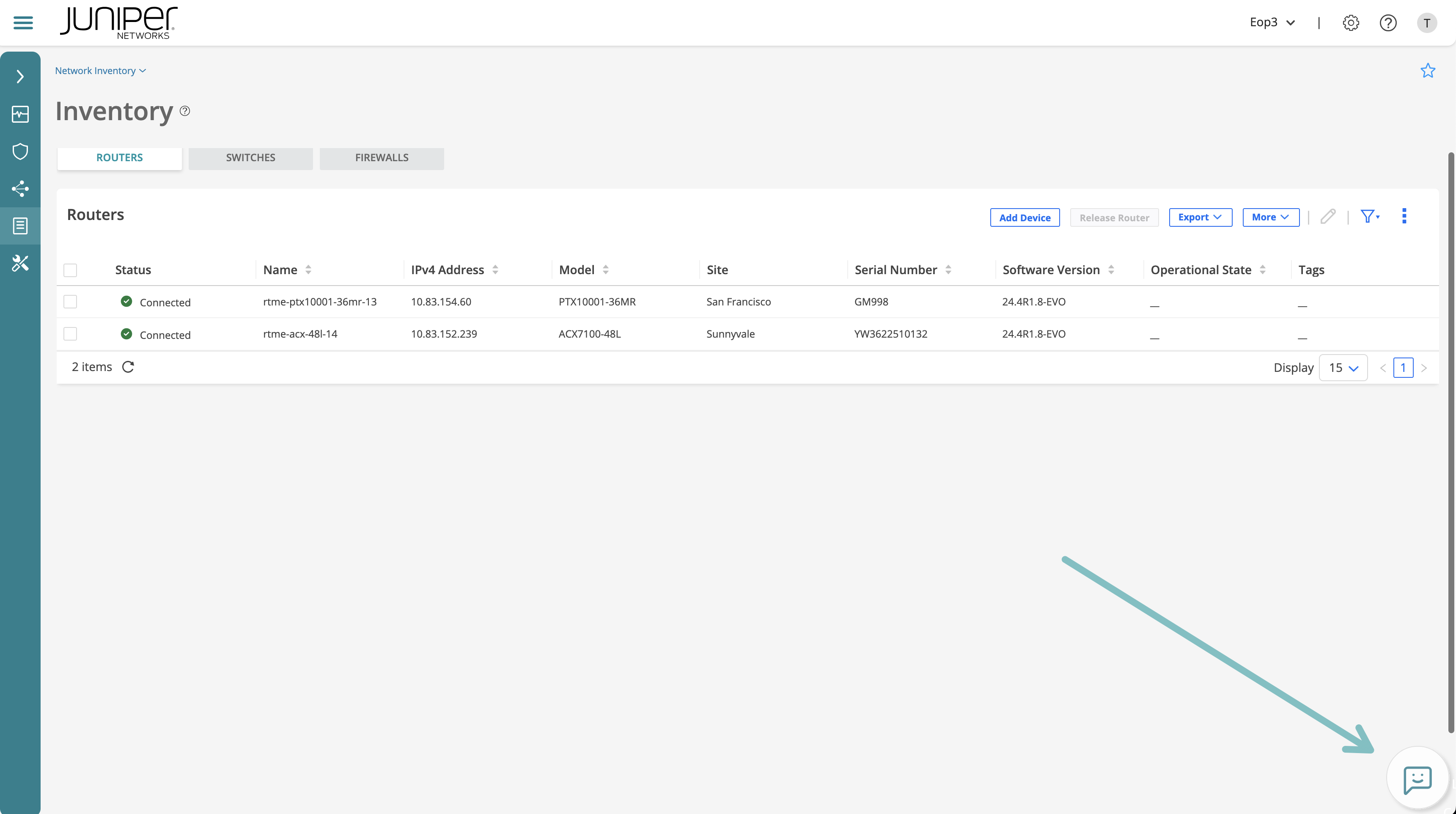
At the bottom right corner of the GUI, you can find the Ask Paragon icon:
Ask Paragon

Click on it and it will open a window so you can interact with it. Here it is a scenario you can play with:

You are a working at Network Operator Center. There are complains of intermittent packet loss and sometimes complete traffic loss. Can Paragon save the day and find the root cause?

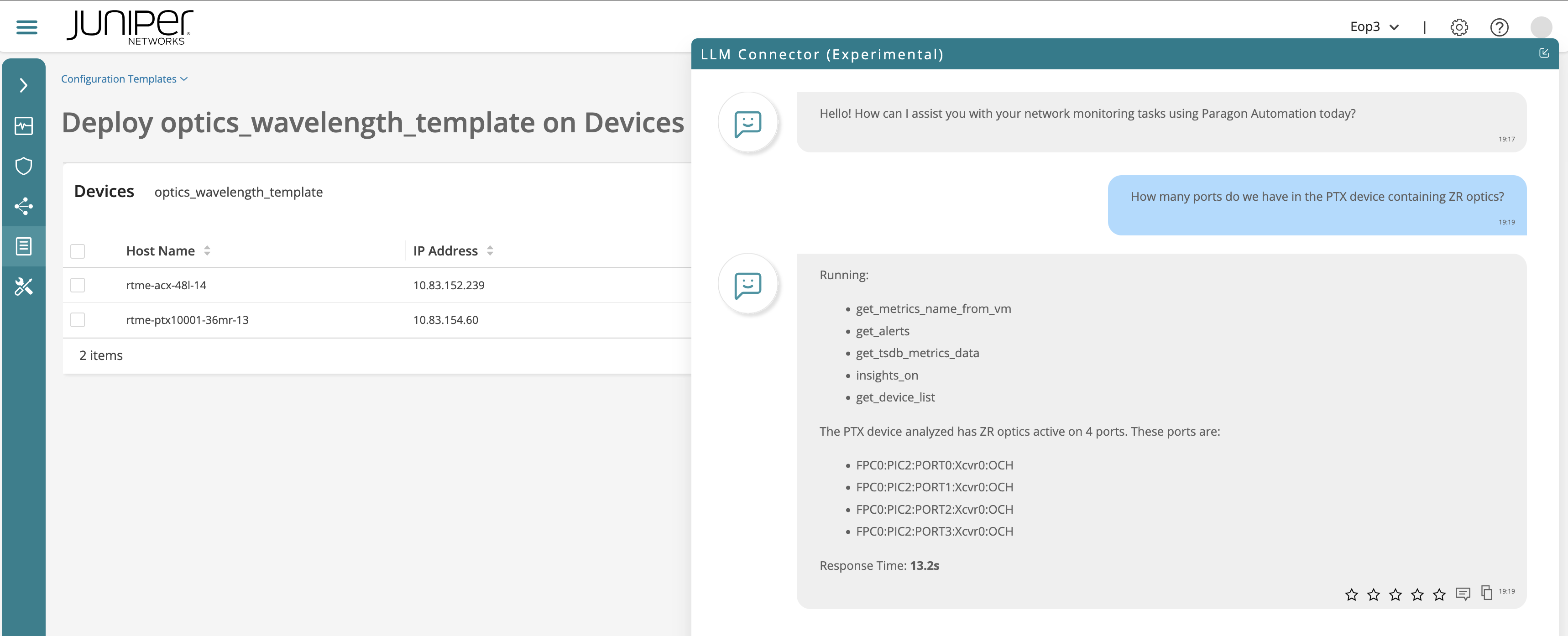
  • Ask Paragon “How many ports do we have in the PTX device containing ZR optics?”
Ask Paragon 0

  • Ask Paragon “Can you list all the QSFP56-DD-400G-ZR-M-HP Optics from the Router Hardware Inventory? Include the FPC, PIC, Xcvr and Part Numbers”
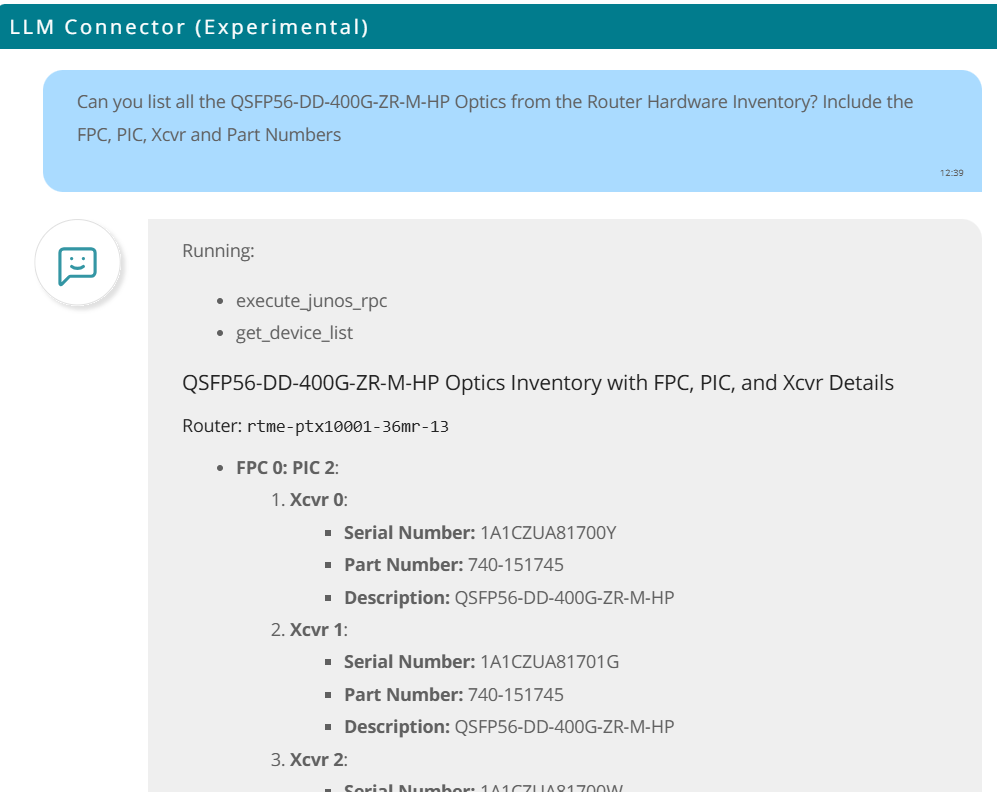
Ask Paragon 0.5

  • Ask Paragon “We are experiencing intermittent traffic drops. Any ideas why?”
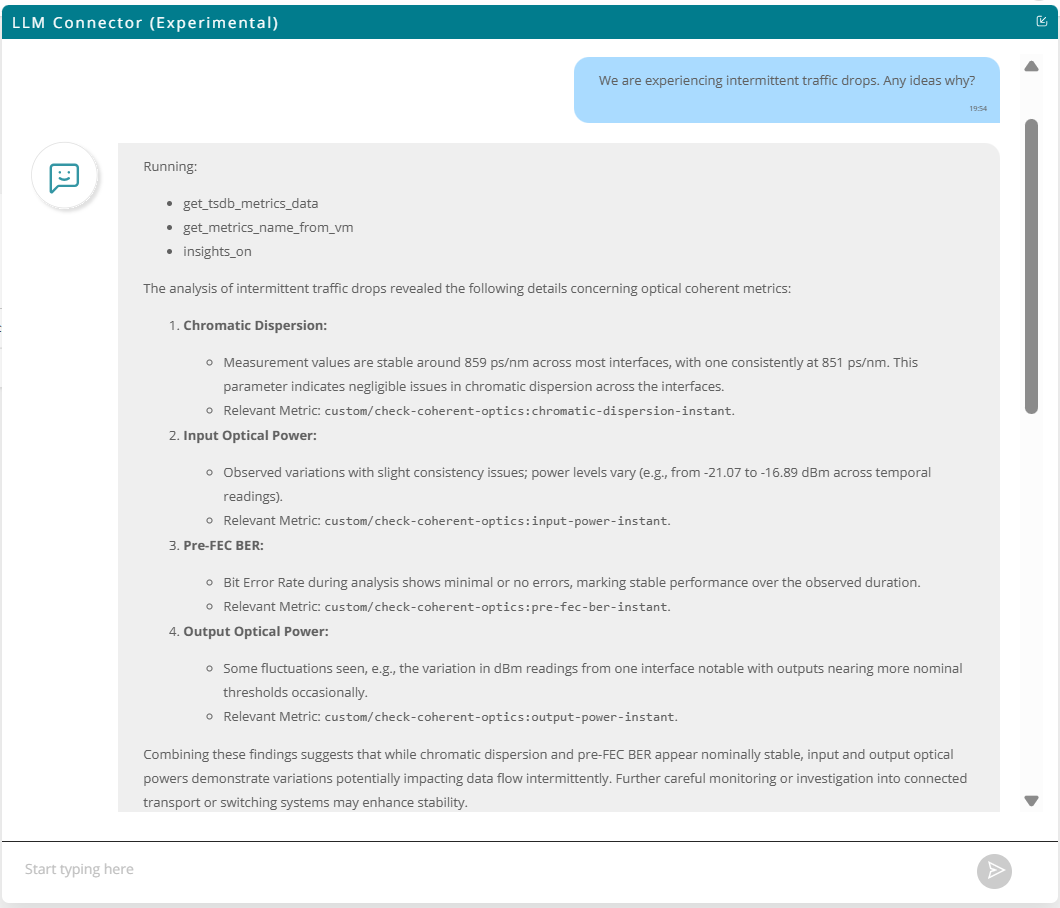
Ask Paragon 1

  • Ask Paragon “What is the expected distance if the Chromatic Dispersion of 859 ps/nm? The fiber optic cable is SMF28”
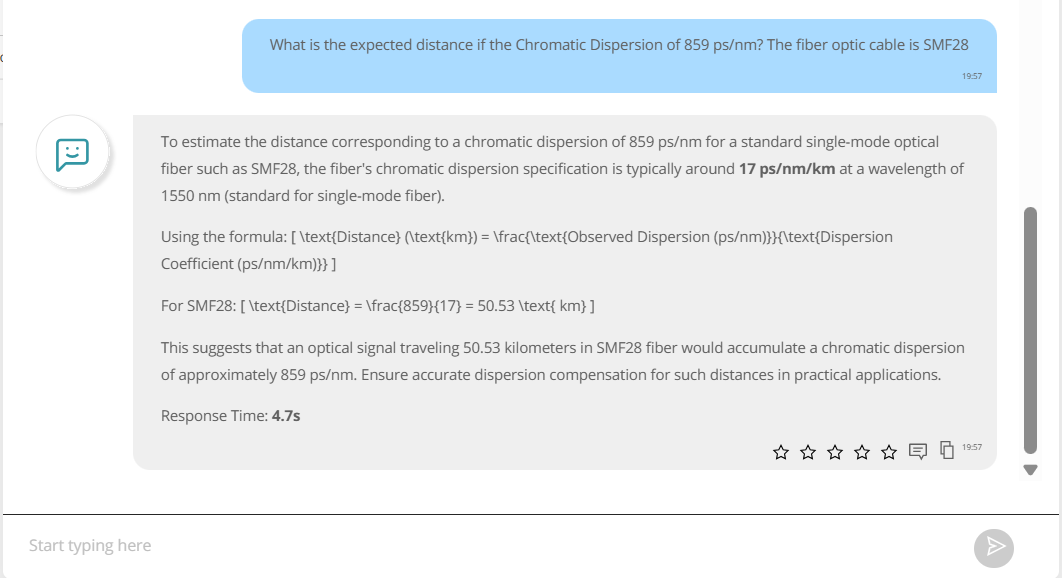
Ask Paragon 2

  • Ask Paragon “You mentioned varying input power. Which interfaces have this issue? Please list all affected interfaces.”
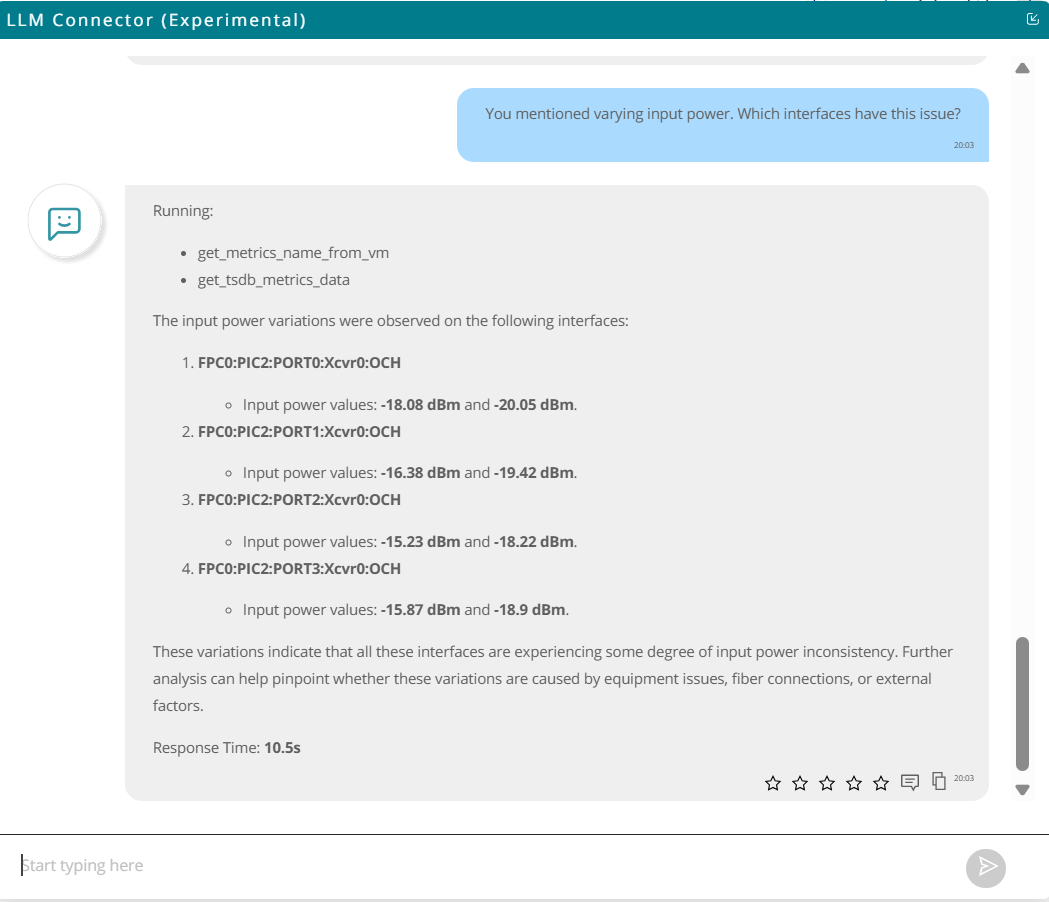
Ask Paragon 3

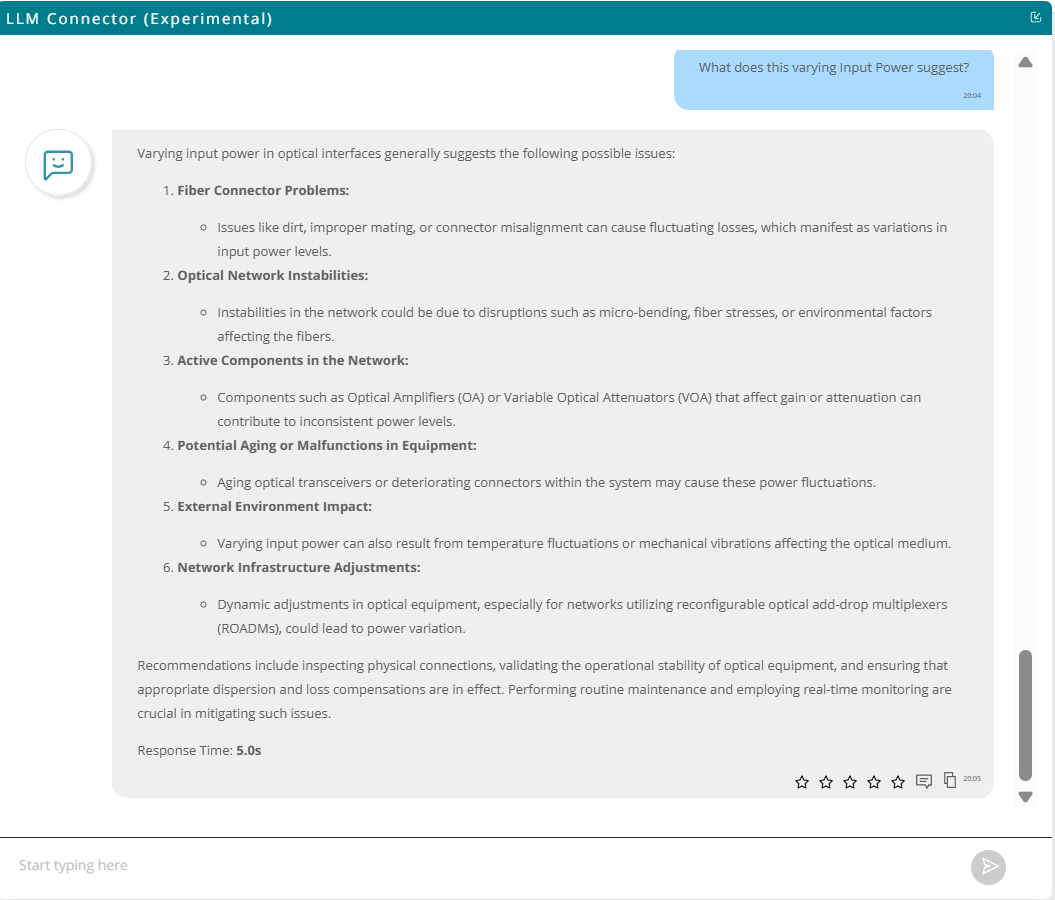
  • Ask Paragon “What does this varying Input Power suggest?”
Ask Paragon 4

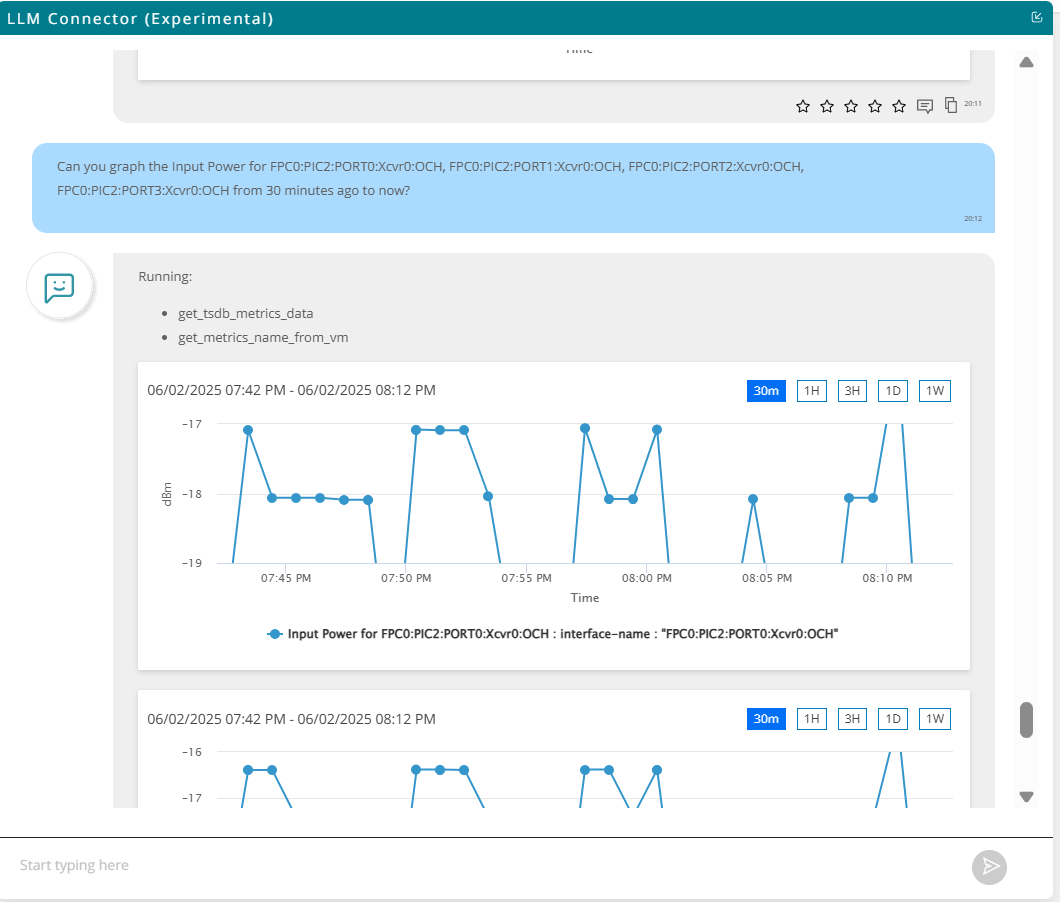
  • Ask Paragon “Can you graph the Input Power for FPC0:PIC2:PORT0:Xcvr0:OCH, FPC0:PIC2:PORT1:Xcvr0:OCH, FPC0:PIC2:PORT2:Xcvr0:OCH, FPC0:PIC2:PORT3:Xcvr0:OCH from 30 minutes ago”

If it does not answer correctly, maybe try in a different way:

  • Can you graph the Input Power for all the DWDM interfaces affected? One graph per interface, gathering data from the last 30 minutes.

Else, you can ask it to plot it one by one. For example:

  • Can you graph the Input Power for FPC0:PIC2:PORT0:Xcvr0:OCH interface?
Ask Paragon 5

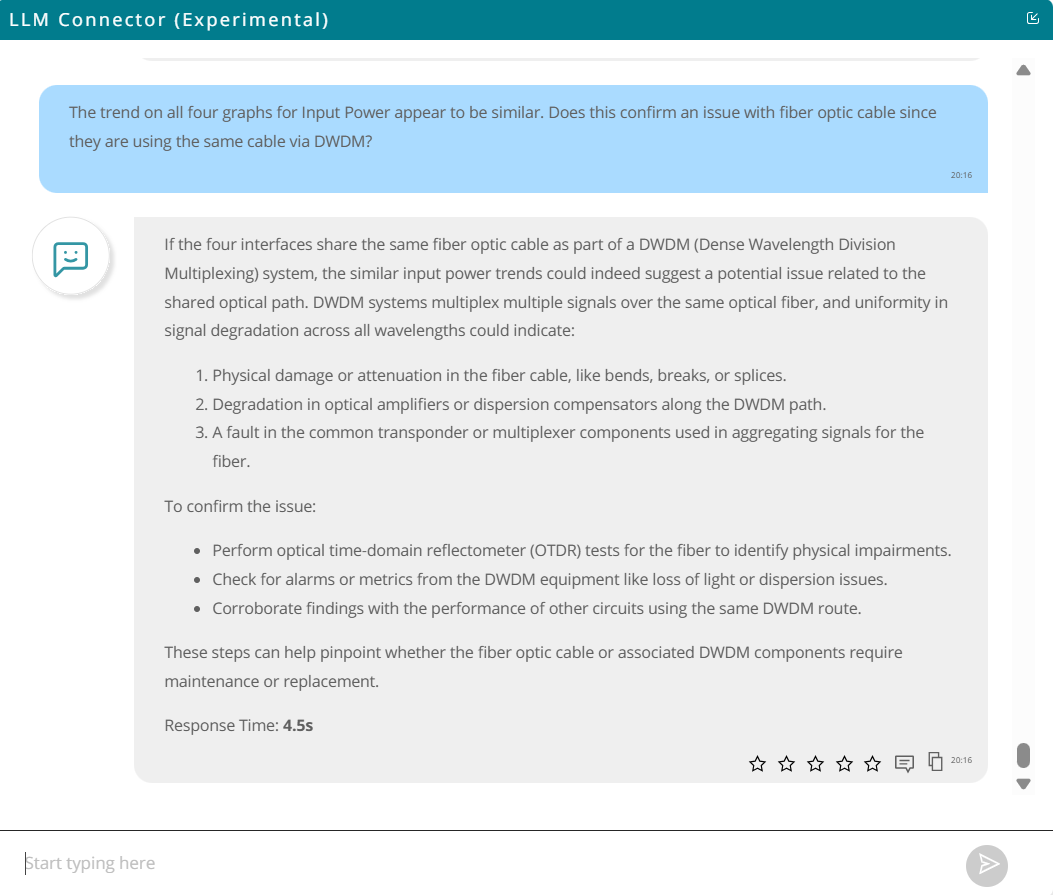
  • Ask Paragon “The trend on all four graphs for Input Power appear to be similar. Does this confirm an issue with fiber optic cable since they are using the same cable via DWDM?”
Ask Paragon 6

TIPS: If the response is not satisfactory, you can repeat the question. If the issue persists, rephrase the question with additional context for clarity. Alternatively, refresh the page to reset the context and try again. Keep in mind that this feature is experimental.

You have successfully completed this Hands-On Lab!

Lab Survey

Please take 2 minutes and complet the Optical Network Assurance Hands-On Lab Survey

Optical-Network-Assurance-hol-Survey-qr-code

Back to top

Source

© Copyright 2025, Juniper Technical Enablement Team.